Apps Get Deleted After the First Launch: What Happens in the First 60 Seconds
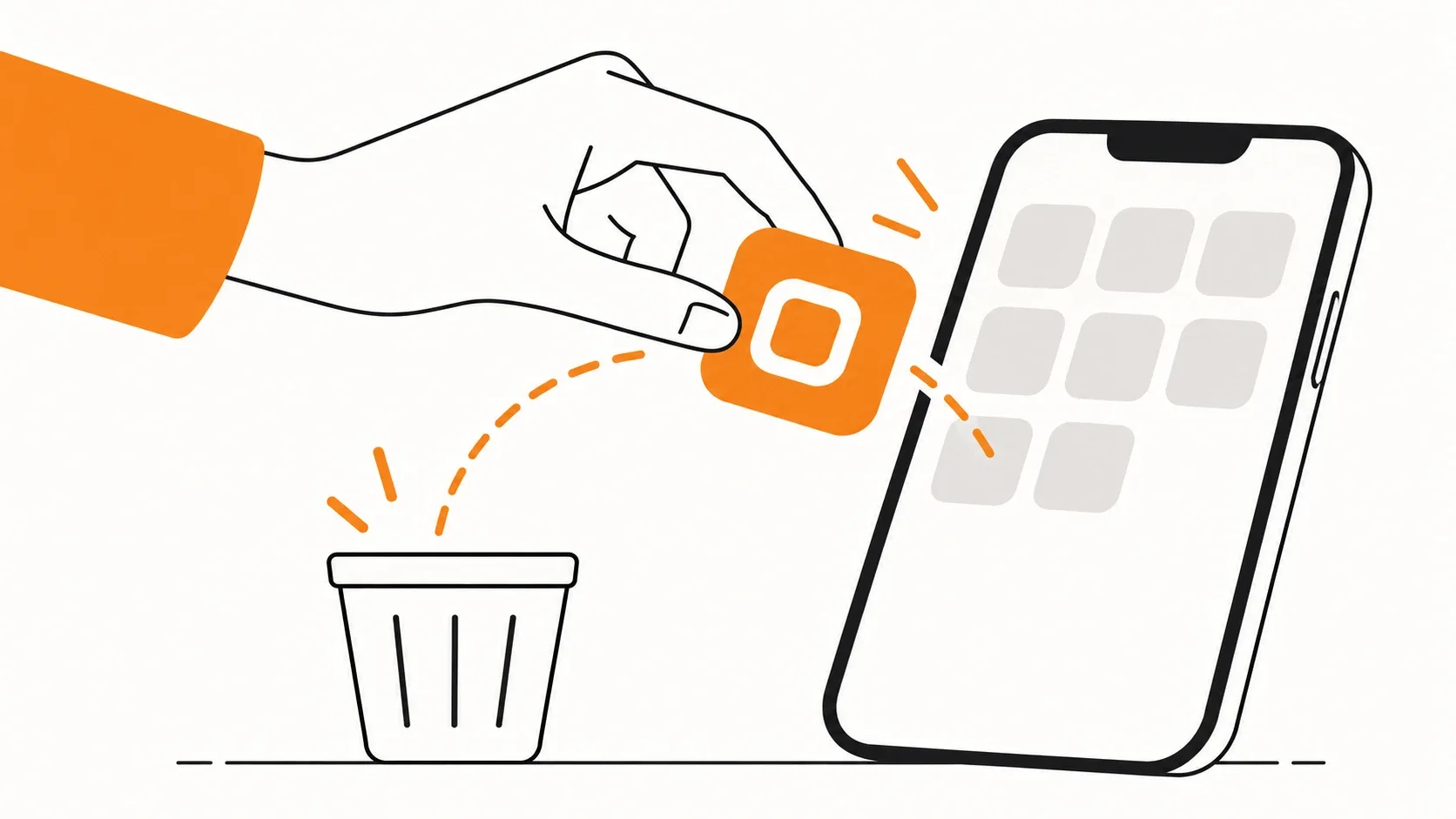
A user downloads an app, opens it, and closes it a minute later. They may never come back, and soon the app ends up in the trash. Why does this happen? Let's look at what can cause this outcome.
A False Perception
To the team, this can look like an acquisition problem: users arrive but don't stay. The temptation is to increase the advertising budget, add new features, or redo the visual style.
But the cause may be much closer to home. The app doesn't launch, the user doesn't see its value, or they have to go through a long onboarding before they can do anything.
The first launch is not a welcome. It is the moment when the user tests the product's promise in practice.
Let's look at what can go wrong in the first 60 seconds, how it affects the business, and what to check before investing money in acquiring new users.
The First 60 Seconds: What the User Decides
A person opening an app for the first time has no habit of using it yet. They don't know how convenient the product is, whether it can be trusted, or whether it really solves the problem they have.
That is why three questions arise at the start of the user journey:
- What will this app give me? Which of my problems does it solve?
- How do I get a result here? Where do I tap and what do I do?
- Is it worth continuing? Does the benefit justify the time and effort?
Users don't necessarily formulate these questions consciously. They look at the screen, tap on elements, try to figure things out, and assess their experience.
If the app answers these questions quickly, the likelihood of continued use is higher. If not, the person may close it, put off getting acquainted with it, or delete it.
Important
60 seconds is not a universal benchmark by which every user makes a final decision. It is a convenient model for analyzing the first experience. In one product, value can be shown in a few seconds; in another, it takes a full scenario. The team's task is not to squeeze the user into a timer, but to reduce the time and effort required to get the first benefit.
Mistake #1. The App Doesn't Work From the First Screen
Before users can appreciate the design, they need to get a working product.
Imagine that a person has downloaded a meal-planning app. They open it, but the loading screen never goes away. Or the app closes right after launch. Or, instead of the home screen, an error message appears with no explanation of what to do next.
At this point, it no longer matters how well thought-out the scenarios are or how beautiful the mockups look.
The user cannot use the product.
- First-launch technical problems come in many forms:
- the app freezes on the splash screen or takes too long to load;
- authorization or account creation fails;
- data fails to load because of a network or server error;
- the app works incorrectly on certain devices;
- the user taps a button but gets no feedback;
- after an error, it is impossible to understand how to proceed.
Some problems don't affect everyone. A launch may go smoothly on one device but end in an error on another. That is why a successful test on a developer's phone does not mean the app works flawlessly for real users.
Why This Is Not Only a Development Problem
Suppose a company has spent money on advertising and brought a user into the app. They are ready to try the product, but they run into an error at login.
The acquisition costs have already been incurred, yet the user never saw the product's value. If they don't bother to figure out what went wrong, the team loses the chance to turn them into an active user or customer.
That is why it is important to check not only for technical errors, but also for how the app behaves when they occur.
If data fails to load, you can show a clear message and a retry button. If the network is unavailable, explain what happened. If an operation takes time, show a loading state instead of leaving the person to guess whether the app is working.
A good interface won't fix a broken server. But it helps keep the technical problem from being made worse by uncertainty and helplessness on the user's side.
What to check: successful and unsuccessful launches, authorization, data loading, behavior on an unstable internet connection, waiting and error states on different devices.
Mistake #2. Onboarding Describes Features but Doesn't Sell the Value
After launch, the user may see several welcome screens:
- "Welcome!"
- "We've created a convenient tool for your productivity."
- "Manage tasks and achieve more."
Then comes another slide, another illustration, and a prompt to tap "Continue".
The problem is not onboarding itself. The problem is that onboarding often turns into a product presentation instead of helping the person get value.
Onboarding should not just tell people what the app can do, but show why these capabilities matter to a particular user.
Let's compare two options.
Option 1. Describing a feature
"The app offers personalized recommendations, statistics, and flexible settings."
The user learns about the capabilities but doesn't understand which of them to try or what they will get as a result.
Option 2. Explaining the value
"Build a workout plan that fits your schedule and track your progress to stay consistent."
Here the connection between the action and the result is already visible. The person understands what the app is for.
But even the second option remains just a promise if the user can't quickly build a plan or see how progress tracking works afterward.
So the best way to show value is not necessarily to explain it in words. Often it is more useful to let the person try the core feature right away.
For example, instead of five slides about the features of a budgeting app, you can invite the user to add their first purchase and show how it affects their expenses. And in a language-learning app, let them complete a short exercise instead of describing the teaching method.
When Onboarding Becomes an Obstacle
Onboarding can get in the way if:
- the user has to go through many screens before getting started;
- the text lists features but doesn't explain the benefit;
- all users get the same instructions even though their tasks differ;
- the app asks them to fill out a detailed questionnaire before the first useful action;
- after finishing onboarding, the person still doesn't understand where to begin.
A long onboarding is not always bad. In a fitness app, a medical service, or a tool with personalized recommendations, questions may be necessary to set up the product. But every additional step must provide a clear benefit or be truly necessary.
If a user answers ten questions and then gets the same screen as someone who filled in nothing, they may reasonably doubt the point of the effort.
A simple criterion: if a step doesn't help personalize the experience, explain an important decision, or bring the user closer to a result, check whether it is needed on the first launch.
Mistake #3. The Product Asks for Too Much Before Giving Anything
Registration, phone number verification, profile setup, consent to notifications, access to geolocation: each of these steps can be justified. But together they create a barrier between installation and the first benefit.
Imagine that a user has opened a food delivery app. Instead of choosing a restaurant, they have to register, verify their number, fill in a profile, and allow notifications. At the same time, they don't yet know which restaurants are available, how much delivery costs, or whether the service suits them.
The team is asking for trust in advance without showing what the user is supposed to give it for.
In another scenario, the app can let the user browse the catalog first, pick an item, or build a cart, and ask them to register only before placing the order. If creating an account really is necessary earlier, it is important to explain why and not to request unnecessary data. The same goes for system permissions.
A geolocation request looks logical when the user wants to find the nearest pickup points. But if the app asks for location right after launch without explaining why, the person may refuse.
Notifications are similar. There is no need to ask for permission in the first seconds. It is better to show the benefit first: for example, explain that a notification will tell them when their order is ready or remind them of a scheduled workout. The point is not to remove every request. The point is to show them at the moment when the user understands their purpose.
Before moving registration or permissions, check the technical, legal, and product constraints. In some scenarios, the data really is needed before the user can continue.
Mistake #4. There Is a Home Screen, but It's Unclear What to Do Next
The user has opened the app successfully. Everything has loaded, registration is done, onboarding is complete.
But the home screen shows several cards, dozens of features, menus, charts, and buttons. Which of them will help solve the user's problem? This is especially noticeable in apps with many capabilities. The team sees a well-thought-out product, while a newcomer sees a set of unfamiliar elements.
For example, a project management app may immediately show workspaces, filters, reports, notifications, and settings. But the user downloaded it to create their first task. If that action isn't obvious, the product forces the person to look for the right path on their own.
A Good First Screen Answers the Question: "What Do I Do to Get a Result?"
This doesn't require simplifying the entire interface down to a single button. What matters is highlighting the main action for a new user and removing the competition between equally weighted elements.
Specific solutions help:
- a prominent button for the main action;
- a short hint next to it;
- an example of what can be done;
- an empty screen that explains the next step;
- the option to skip optional setup and return to it later.
It is especially important to design empty states. If the user hasn't added a single task, habit, or document yet, the screen shouldn't look broken. It can explain where to start and suggest taking the first action. Instead of an empty task list, you can show: "Your tasks will appear here. Create your first one to start planning your day."
This small change helps the user move forward without any extra instructions.
Mistake #5. The User Got Nothing for the Time Spent
There is one more problem that is easy to miss. An app can work without errors, have a clear onboarding and a tidy interface, and the user still won't feel any benefit.
For example, they went through registration, filled in their profile, and explored the main sections. But they didn't create a first task, didn't get a recommendation, didn't find the information they needed, and didn't complete a single useful scenario. They spent time but didn't see what had changed for the better.
In product design, there is the concept of the aha moment — the moment when a person first realizes the product's value through their own experience. It is not necessarily a spectacular screen or animation. In a note-taking app, it could be a saved note found through search. In a financial service, a clear expense report. In a learning app, the first completed exercise with a clear result.
The aha moment depends on the product's purpose. For one service it may be the first target action; for another, several actions after which the user notices the benefit. The team's task is to define this moment and make the path to it as short as possible.
At the same time, it is important not to confuse a quick action with real value. If a person tapped a button but didn't get the expected result, the scenario is formally complete, but the product's goal has not been achieved.
So it is useful to ask not only "How many users tapped the button?" but also "How many of them actually got what they came for?"
How to Check the First 60 Seconds of Your App
To find first-launch problems, you don't have to immediately commission large-scale research or completely redesign the interface. You can start with a simple check that takes about 10 minutes. Open the app as if you were seeing it for the first time. If you have been working on the product for a long time, it is better to also ask someone unfamiliar with it to go through the same scenario.
Answer Five Questions.
1. Is the value clear from the first screen?
Can a person explain in their own words what problem the app solves and what they will get?
2. Can you start using the product without unnecessary obstacles?
What steps stand between launch and the first useful action? Are they all necessary right now?
3. Does the onboarding explain why the features matter?
Does it help the user get a result, or does it simply list the app's capabilities?
4. What happens if something goes wrong?
Check loading, an unstable connection, login errors, and other problem states. Is it clear to the person what to do next?
5. Will the user get their first benefit within the initial scenario?
Is there a specific action after which they will see a result, rather than just landing on the home screen?
If even one of these questions is hard to answer, that is a reason to review the corresponding scenario.
What to Observe During the Check
Don't tell the participant where to tap. Ask them to complete a specific task, for example: "Imagine you want to plan the next week. Try to do it with the app."
Watch where they stop, which elements they ignore, what they try to tap, and what questions they ask. Don't explain the interface until they have finished the attempt. Otherwise, you will be testing not the app, but your own ability to present it.
After the scenario is complete, ask:
- What did you understand about the app?
- What problem does it help solve?
- What was unclear?
- Would you want to keep using it? Why?
The answers are useful, but observed behavior is just as important. A person may say everything is clear and still make several mistakes while performing the key action. A check with a few people won't replace analytics and full-scale research, but it often helps uncover obvious obstacles before the team spends resources scaling them.
Which Metrics Show That There Is a Real Problem
Impressions from testing are not enough if you need to understand the scale of the problem among real users. For that, it is worth looking at several indicators.
Share of users who completed the key action in the first session. For example, how many people created their first task, completed an exercise, or added an item to the cart after launch. The key action should reflect the value of your specific product. Conversion between first-launch stages. How many users opened the app, completed registration, went through onboarding, and reached the target action? A sharp drop between two stages helps pinpoint the place worth examining.
Technical errors and crashes. Crash frequency, authorization and data-loading errors, launch time. These indicators help separate interface problems from technical obstacles.
Next-day retention. What share of users return after the first launch? This indicator helps assess early retention, but by itself it doesn't explain why people leave.
Day-one uninstalls. If the platform and the analytics tools you use can provide such data reliably, it can be compared against user behavior. But an app deletion can't always be accurately tied to a specific session or reason for leaving.
Don't try to improve all the metrics at once. First find the problem stage, formulate a hypothesis, and test it. For example: "We assume users don't reach the first useful action because mandatory registration takes too long."
Next, you can test an alternative scenario: allow users to view the main feature before registration, if the product's logic permits it. Then compare how target-action completion and subsequent retention changed. It is important to watch not only conversion at a single stage, but also the quality of the outcome. Simplifying registration may increase the number of first actions, but it won't necessarily lead to more users who come back.
What to Do If Users Leave After Launch
- Don't start by redesigning every screen. First determine at which stage the obstacle arises.
- If the app doesn't launch or throws errors, the priority is technical stability.
- If the user doesn't understand why they need the product, revisit the first screen and the way the value is stated.
- If onboarding is too long and doesn't help people get started, remove optional steps or move the hints into the context of use.
- If the user can't find the main action, simplify the home screen and make the next step obvious.
- If a person completes the scenario but doesn't get the expected result, check not only the interface but the product itself: does it really solve the problem people download it for?
The last point is fundamental. Design can remove unnecessary obstacles, make scenarios clearer, and help people get value faster. But it can't compensate for the absence of real value.
Sometimes the problem lies in the interface. Sometimes, in the technical implementation. And sometimes the app simply doesn't solve a problem that is important enough to the user. These causes call for different solutions, so it is important not to confuse them.
The First Launch Is Part of the Product, Not a Separate Presentation
Users aren't obliged to figure out your app, put up with errors, or read long instructions to understand its purpose. They have no reason to stay if the product doesn't deliver on its promise or doesn't help them get a result. That is why the first seconds of use deserve to be designed as carefully as payment, search, or the core work scenario.
A good first experience is made up of several conditions: the app launches reliably, the user understands its value, quickly finds the next action, and gets the result they came for. If one of these elements fails, additional features and advertising campaigns may not solve the problem.
Start with a simple question: how many actions does a new user need to take to feel the benefit of your app for the first time?
If this is hard to answer, it may be worth starting not with new screens, but with a review of the current user journey.
A Special Offer
We offer a free review of your mobile app's first launch in the form of a 5–10-minute screencast. We'll look at the new user's path, point out where unnecessary obstacles arise, and suggest what to check first. Such a review will help define the first hypotheses for improving the interface and user experience. Just write "Flight Review" in your message.